¶ Using OpenVPN Connect App
STEP 1
Download the OpenVPN Connect App
iOS
Via Appstore- https://apps.apple.com/gb/app/openvpn-connect/id590379981
Android
Via Playstore- https://play.google.com/store/apps/details?id=net.openvpn.openvpn&hl=en_GB
Windows
Via OpenVPN Website- https://openvpn.net/connect-docs/connect-for-windows.html
Step 2
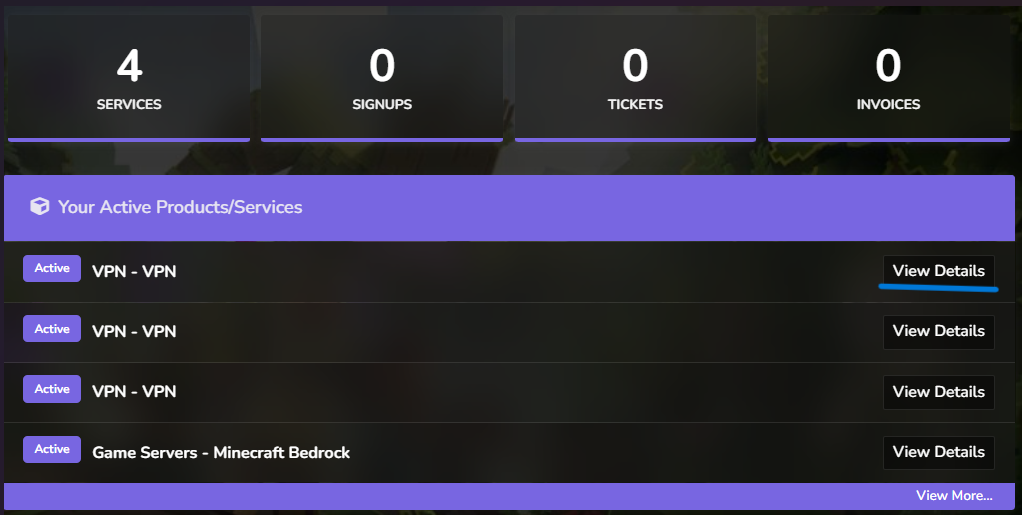
Login to your billing account via https://www.clwhost.com/
Then in your client area locate your VPN subscription and click ‘View Details’
Step 3
Scroll down to OpenVPN Configs
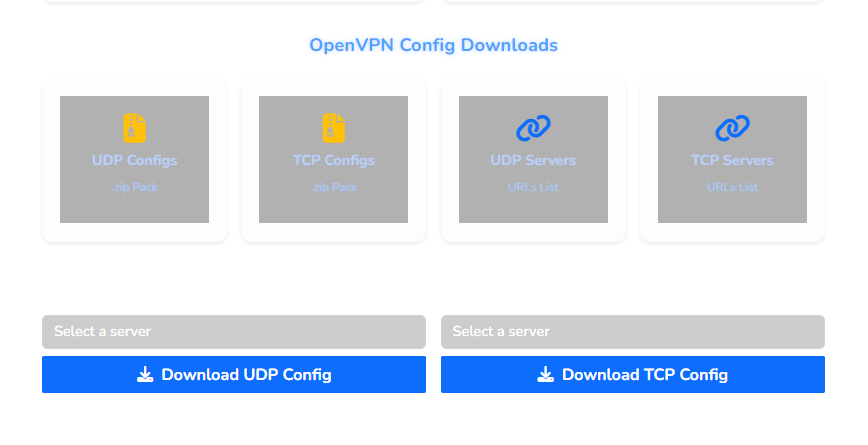
Choose if you want a UDP or TCP Config for this example we will be choose UDP and will be Ireland
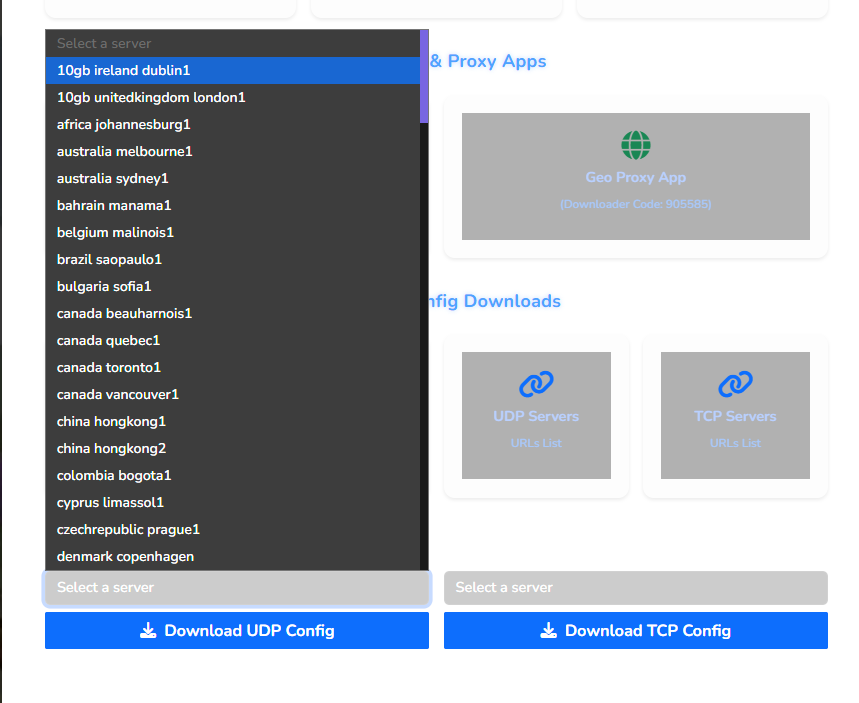
Then hit the download button

Step 4
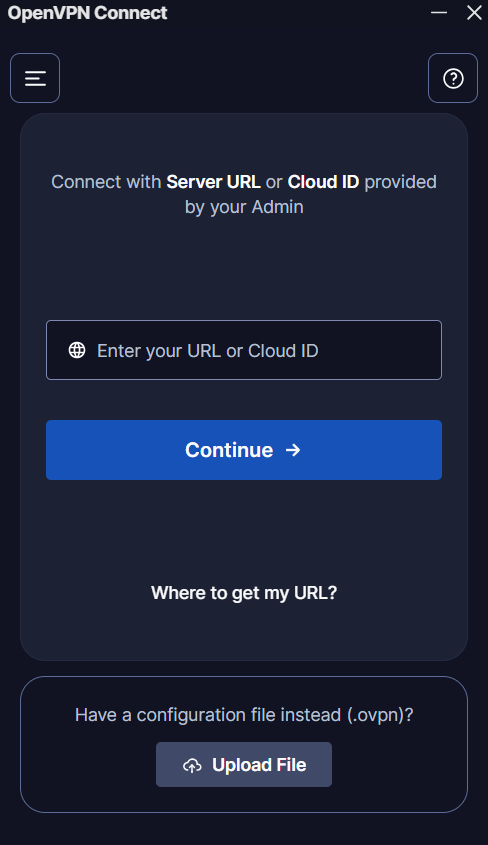
Open your OpenVPN Connect client, for this example we will using OpenVPN Connect on Windows. However the process should be the same for Android and iOS
Step 5
Select Upload Configuration File and select your downloaded configuration file again in this example it will the Ireland configuration file we downloaded earlier and select ‘Import’
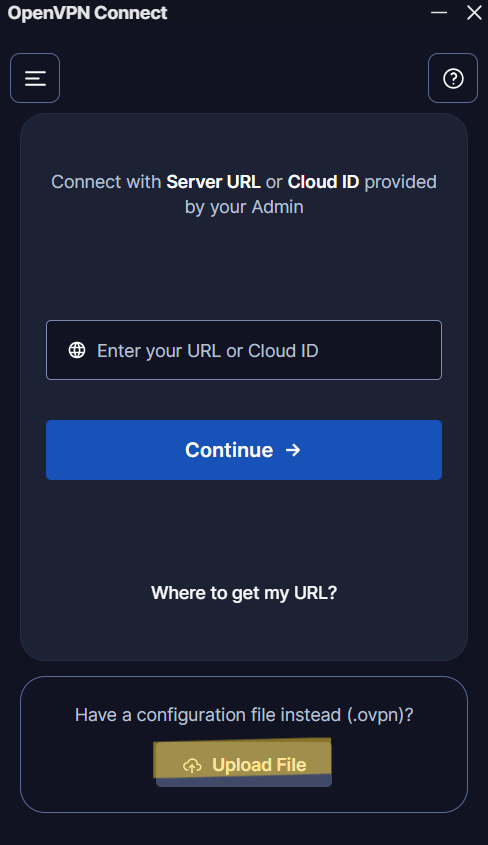
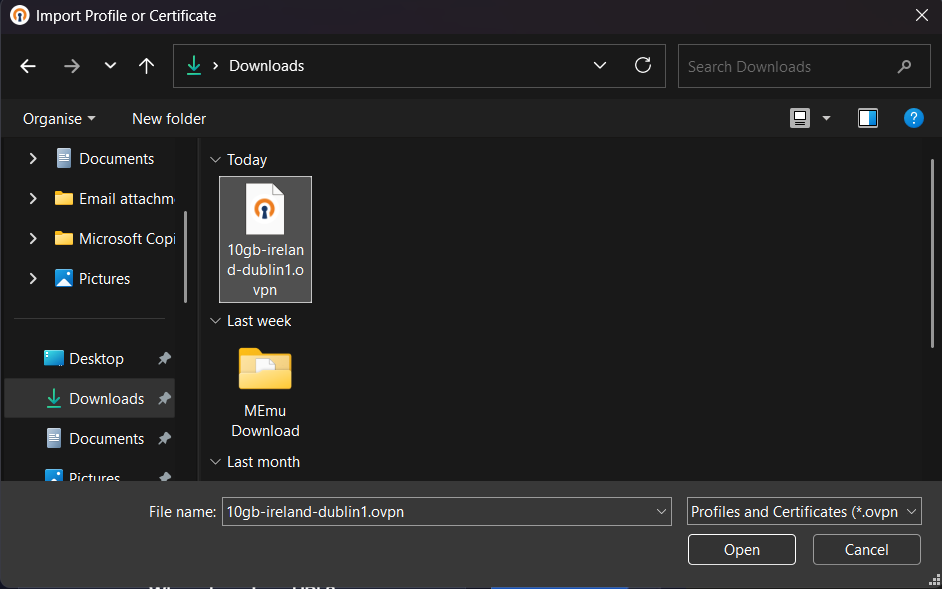
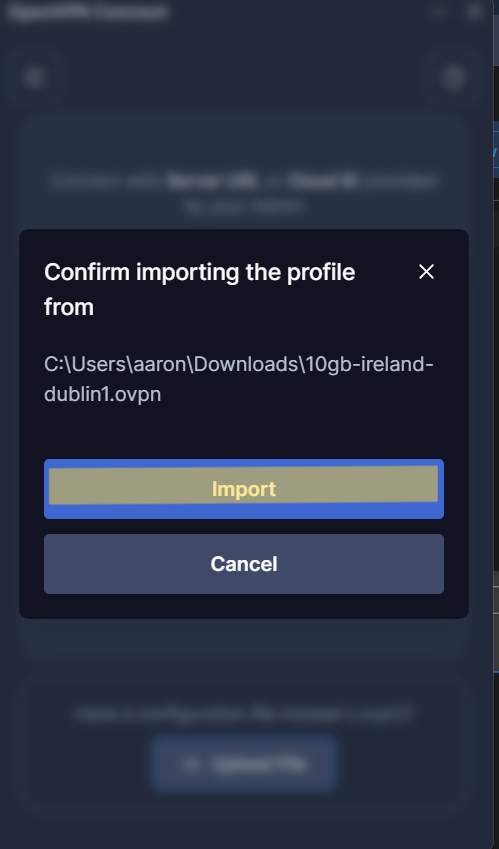
Step 5
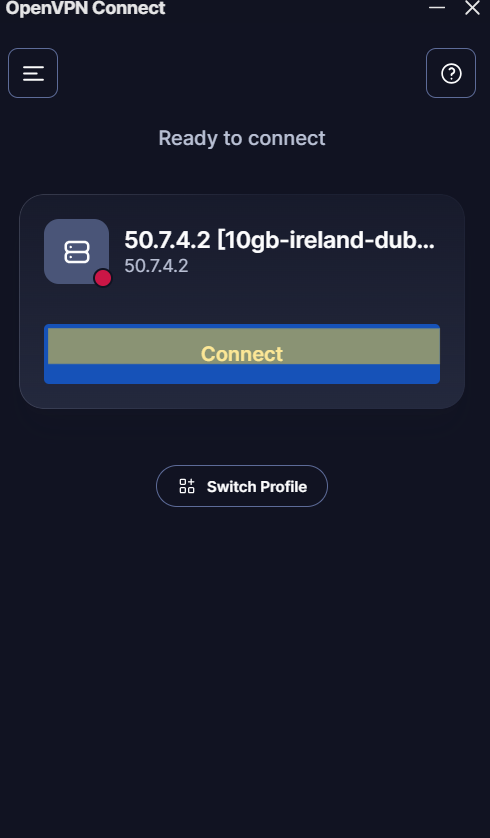
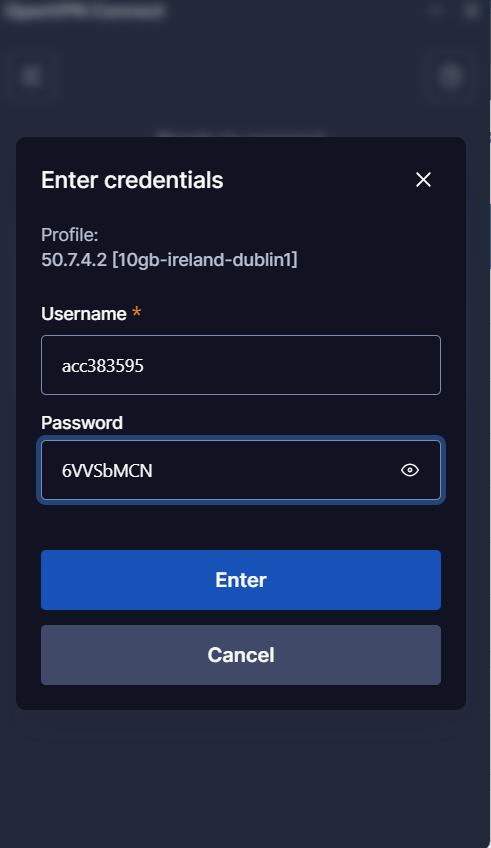
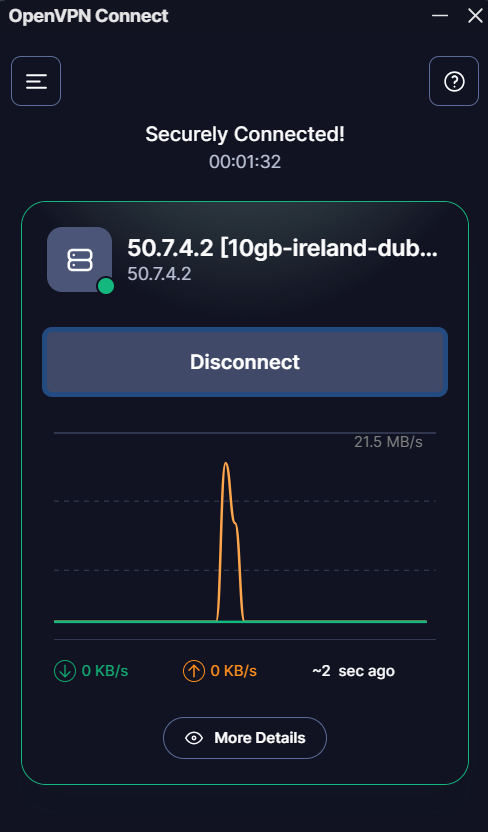
Your selected Server Should now be ready to use! Simply hit connect and Enter your VPN login details and you should connect to your select server!!
If you have any issues with this set up please reach out by Opening a Ticket in our Discord Server and someone will assist you!!